
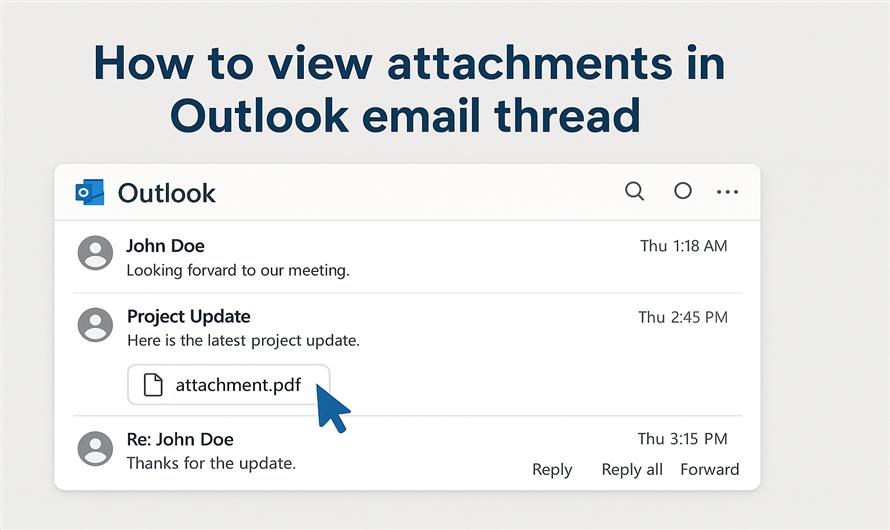
Overview: Attachments are after all the essence of email communication like it might be an invoice, a report, a proposal or a picture. Email messages can accumulate in Microsoft Outlook, particularly in discussions and long threads. It can result in trouble searching for attachments sent and received through the entire discussion thread. If you are thinking how you can view attachments in Outlook email thread without manually opening each message? Then, this guide is for you as it will describe why no attachments may be visible, how to access them manually, and the limitations of Outlook when it comes to long email threads.
Also Read: Save Outlook Attachment to Folder Automatically
Why No Attachments in Outlook Email Thread?
There are following points why some attachments go missing particularly in lengthier threads. Read this out quickly to move forward.
- Outlook joins unrelated emails together. If the attachment is nested in an old message in the thread, you may not see it in the preview pane.
- Users often forget to attach attachments from previous emails within the conversation.
- By default Outlook displays a single message unless you expand the entire email thread.
- Embedded attachments may not be visible in the attachments pane. But within the message itself.
- If you are in plain text mode or have receivers with restricted viewing. Then, the attachments may not appear correctly.
- Old cache files or your Outlook profile may be hiding or corrupting attachment previews.
How to View Attachments in Outlook Email Thread? 5 Manual Methods
There are also other manual ways you can take to avoid missing out an attachment in your Outlook conversations. Here are some that seem to work.
Method 1. Expand the entire conversation
Outlook's conversation view may be very important for attachments to hide in so much of a mess. When you expand the entire conversation, it's easy to search for all. Follow the given steps:
- Firstly, open Outlook and navigate to the Inbox.
- Next, click the View tab.
- Be certain Show as Conversations is on.
- Click the arrow button which is just near your conversation area to expand the thread.
- View messages within the thread individually and you will see attachments listed with emails.
Method 2. With the Attachment Icon
This method where a trusty paperclip icon serves as an instant visual cue to identify emails with attachments. Don’t waste your time opening every single message and let the icon lead you directly to the files you need.
- In the list of messages, you will see a little paperclip icon in the column next to the date. It indicates that all your emails have an attachment with that.
- If you are using a conversation view, you can hover over each message in the string to see where the paperclip shows up.
- Just open those messages to download the attachment there.
Method 3. Search for Attachments Using Outlook Search
This is also another practice which is commonly used to access your emails stored in your system.
1. You need to use the search bar in Outlook.
2. In that, just type:
hasattachments :yes
3. By the help of this command, it will sort all the emails which contain attachments.
4. You can also further narrow your search using keywords like date or sender.
Method 4. Sort by Emails with Attachments
In this method, you can filter out the emails of each time period. Just follow these quick steps.
- On the ribbon, click the Search tab.
- Select Has Attachments to search for all the messages that include attachments.
- Scroll through the list and find attachments in threads.
Method 5. Go to the Outlook Web Access (OWA)
Or even just that the attachments are easier to read for some reason. Have a look into these steps.
- Log in to Outlook Web.
- Open the conversation thread.
- Attachments should appear at the beginning or the end of the thread view for convenience.
Limitations of Viewing Attachments Using Manual Solution
There are various points to remember while using manual methods. Look into those crucial drawbacks which can affect user experience.
- No unified view of all attachments in a conversation.
- It is quite time consuming to check each email in a lengthy email process.
- Attachments that appear "inline" can easily be overlooked.
- Chance of missing important attachments sent in previous messages.
- No attachment summaries in previous versions of Outlook.
View Attachments in Outlook Email Thread - Advanced Solution
If you are constantly surrounded by emails and threads and you are trying to manually check each email message in order to find if it has attachments. It will be tedious and time taking work. For a smarter & effective solution you can use SysTools Outlook Attachment Extractor. It is built to automatically browse and export every attachment from Outlook PST, OST, BAK, or even MSG files. The tool gives you the option to strip attachments based on folder, date, size and even file type. It is fully compatible with ANSI and Unicode PST formats and guarantees all attachments are extracted and saved to the location of your choice in one click.
Conclusion
It can be confusing to manage and view attachments in Outlook email threads, especially long conversations. Using manual methods such as expanding the conversation, filtering for attachments, or the search feature. It will allow you to get what you need more expediently. But for people receiving too many emails, or looking for an easier way to manage attachments, use our advanced tool to extract all the attachments from multiple emails at once to a single folder. In this manner, you won’t need to scroll through each email message which would take up your time and be subject to error.


Leave Comment